

Monitor a user flow (Transaction monitor)
The Transaction monitor (API type tran, shown in the app as Transaction check) drives a real Chromium
browser through steps you define - open a page, click, type, check text, wait - and fails at the first step that
does not work. Use it when one request cannot prove the thing works: a login, a search, add-to-cart, a
multi-page form.
At a glance
Section titled “At a glance”| API type token | tran |
| Runs from | HostTracker’s browser checkpoint fleet - you pick the locations |
| Intervals in the app | 10, 15, 30, 45 minutes, 1, 2, 4, 6, 12, 24 hours, or a cron schedule |
| Default interval | 10 minutes in the app; 3 minutes if omitted in the API |
| Steps | 1 to 10 authored steps, run in order after the opening page load |
| Plan gates | the Transaction type is a package feature with its own monitor count (tranCount) |
How Down is decided
Section titled “How Down is decided”The check always starts by opening the monitor’s own URL (the Initial navigation step, shown in the API as a
read-only step 0 with synthesized: true). Then each step runs in order, and the check fails at the first
step that fails - a selector not found, a keyword check that does not pass, a navigation timeout. It also fails
when the whole flow exceeds the Transaction timeout, and, with Fail on console error on, when the browser
logs a console error that is not on your allow-list.
A failure is re-checked from other locations before the monitor turns Down. The result shows which step failed.
Settings reference
Section titled “Settings reference”The name, interval, cron, tags, Full Log, Open Stats, subscriptions and locations work as described in Common monitor fields.
| Setting (app label) | API field | Type / allowed values | Default | Plan limits | What it does for you |
|---|---|---|---|---|---|
| Initial navigation step | url |
URL | required | - | The first page the browser opens. |
| Transaction timeout (Main Settings) | settings.timeout |
milliseconds, 0-40000 | 40000 | - | Budget for the whole flow. The app slider goes higher, but values above 40 s are refused. |
| Transaction Steps | settings.steps |
array of 1-10 step objects (below) | required | - | The flow. The counter shows N / 10 steps configured. |
| Final screenshot | settings.finalScreenshot |
boolean | true |
- | Screenshot of the page after the last step - the first thing to look at when a step fails. |
| Skip loading media files | settings.skipMedia |
boolean | true |
- | Skips images and other media to make runs faster. |
| Fail on console error (Response Validation) | settings.consoleError |
boolean | false |
- | Fails the check when the browser logs a console error. |
| Expected console errors (optional) | settings.expectedConsoleErrors |
up to 10 strings, 127 characters each | none | - | Console errors containing any of these texts are ignored (matched case-insensitively). |
| Recheck strategy, If selected locations are unavailable | recheck, locations.fallback |
as on the Website monitor | majority vote, starve |
- | How failures are confirmed. |
Step actions
Section titled “Step actions”Every step has action plus these optional fields: name (up to 19 characters, shown in errors), timeout
(milliseconds, 0-40000, overrides the action’s default), screenshot (true - capture after the step) and
waitForNavigation (true or {"delay", "failWhenNoNav", "timeout"} - wait for a page change after the step).
| App action | action |
Fields | What it does |
|---|---|---|---|
| Navigate to a new page | navigate |
url (required, up to 2047), skipMedia, timeout (default 20000) |
Opens a URL (Page URL, Navigation timeout). |
| Click page element | click |
select (a CSS selector string, or a selector object) or x + y; button (left, right, middle); delay (ms held down); sleep |
Clicks an element (CSS selector to click) or a viewport point. |
| Fill in a text input | type |
text (required, up to 255), select, delay (ms between keys), sleep |
Types into a field (CSS selector of text input, Text to type). |
| Verify page elements | select |
selector (required, up to 127), validationStrategy, selectStrategy, onlyVisible, delay |
Checks how many elements match (CSS selector to find, Validation strategy). |
| Verify textual content of a page | checkContent |
keywords (1-10, up to 127 each), all, reverse, caseSensitive, onlyVisible, highlightKeywords |
Checks the rendered text (Content check keywords, Match mode). |
| Wait for specified time | sleep |
delay (1-10000 ms, required), dispersion (0-5000 ms of random jitter) |
Pauses (Delay). |
| Go back to the previous page | back |
timeout (default 20000) |
Browser Back (Back navigation timeout). |
| (API only) Hover | hover |
select, sleep |
Moves the pointer over an element. |
| (API only) Screenshot | screenshot |
none | Captures a screenshot as its own step. |
| (API only) Wait for navigation | waitForNavigation |
delay (default 1000), failWhenNoNav, timeout |
Waits for a page change as its own step. |
Validation strategy (validationStrategy): Fail if no elements found = oneOrMore (default), Fail if
any element present = zero, Fail if not exactly one = one; the API also accepts zeroOrMore (never
fails on the count). selectStrategy picks which matches a click or type acts on: all (default), first,
random; a plain selector string means first.
After click behavior in the app maps to the step’s post-actions: End current step (none), Wait a few
seconds (sleep), Wait for navigation (waitForNavigation: true), Wait for navigation, otherwise fail
(waitForNavigation: {"failWhenNoNav": true}).
Match mode for text checks: ANY keyword must be PRESENT (all: false, reverse: false), ALL keywords must
be PRESENT (all: true), ANY keyword must be ABSENT (reverse: true - fails only when every keyword is
found), ALL keywords must be ABSENT (all: true, reverse: true - fails when any keyword is found).
Set it up in the app
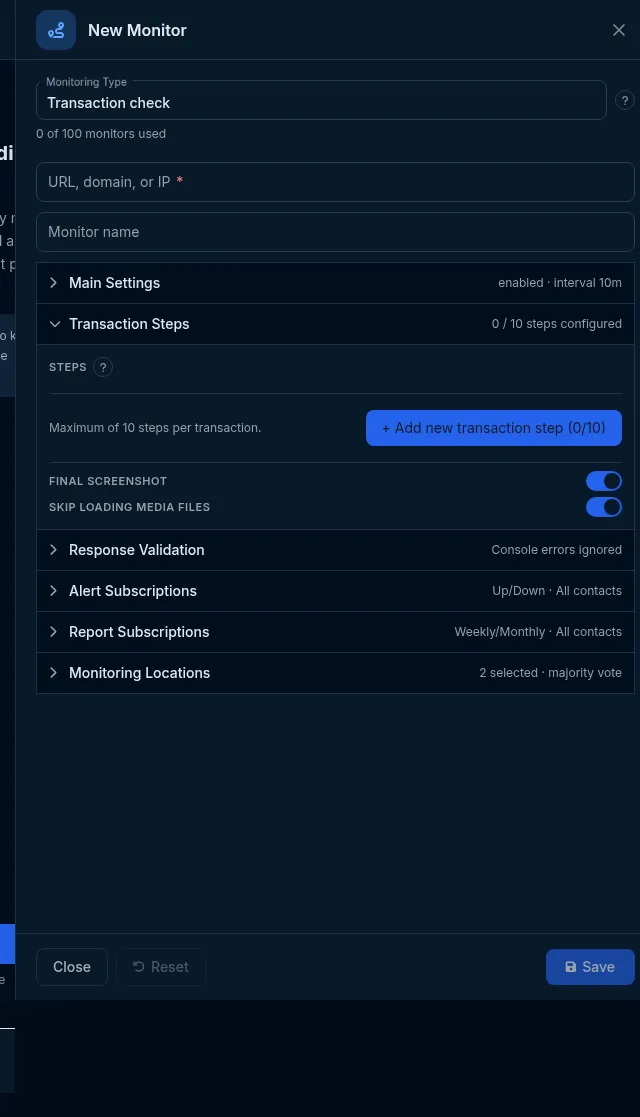
Section titled “Set it up in the app”- On the Sites dashboard, click Add Monitor and choose Transaction check in Monitoring Type.
- Enter the start page in Initial navigation step and a name.
- In Main Settings, set the interval and Transaction timeout.
- In Transaction Steps, click Add new transaction step for each step, choose the Action and fill in its fields. Steps run top to bottom.
- Keep Final screenshot on. Optionally switch on Fail on console error in Response Validation.
- Pick browser locations in Monitoring Locations and click Save.
Do it with the API or MCP
Section titled “Do it with the API or MCP”A login flow:
curl -X POST https://api2.host-tracker.com/monitor \ -H "Authorization: Bearer $HT_TOKEN" -H "Content-Type: application/json" \ -d '{ "type": "tran", "url": "https://app.example.com/login", "name": "Login flow", "interval": 600, "locations": { "pools": ["allworld"] }, "settings": { "timeout": 40000, "steps": [ { "action": "type", "name": "email", "select": "#email", "text": "[email protected]" }, { "action": "type", "name": "password", "select": "#password", "text": "<password>" }, { "action": "click", "name": "submit", "select": "button[type=submit]", "waitForNavigation": { "failWhenNoNav": true } }, { "action": "checkContent", "name": "dashboard", "keywords": ["Dashboard"] } ] } }'Update - replace the steps (the array is replaced as a whole) or change one setting:
curl -X PATCH https://api2.host-tracker.com/monitor/<monitor-id> \ -H "Authorization: Bearer $HT_TOKEN" -H "Content-Type: application/json" \ -d '{ "settings": { "consoleError": true, "expectedConsoleErrors": ["favicon"] } }'When you read a Transaction monitor back, steps[0] is the synthesized opening step. Sending the array back
unchanged is safe - that step is dropped on write, and the 10-step limit counts only your own steps.
MCP (interval is passed to the API as-is, in seconds):
create_monitor(type="tran", url="https://app.example.com/login", interval=600, pools="allworld", settingsJson="{\"steps\":[{\"action\":\"checkContent\",\"keywords\":[\"Sign in\"]}]}")Recipes
Section titled “Recipes”- Login works - type email, type password, click submit with Wait for navigation, otherwise fail, then Verify textual content for a word only a signed-in user sees.
- Search returns results - type into the search box, click search, Verify page elements
.resultwith Fail if no elements found. - No error dialog - Verify page elements
.error-modalwith Fail if any element present. - Slow SPA - add a Wait for specified time step (for example 2000 ms) before a check.
What happens next
Section titled “What happens next”Each run stores per-step timings, the failing step’s error and the screenshots. A failure is re-checked from other locations, then opens an incident and alerts the subscribed contacts.
Limits and gotchas
Section titled “Limits and gotchas”403 package_limit- your package does not include Transaction monitors, or its count is used up.422 invalid_settings- more than 10 steps, a step name of 20 or more characters, a timeout above 40000, ascreenshotpost-action on ascreenshotstep, or a field that does not belong to the step’s action.- Step text, including passwords, is stored in the monitor. Use a dedicated test account.
locations.poolsis required on create.