

Set up email alerts
Email is the simplest and most reliable channel, and the one every account should set up first. It’s free, supports the full alert content (error details and rich HTML formatting), and it’s the only channel that can receive scheduled uptime reports - every other channel is alerts-only.
Settings reference
Section titled “Settings reference”| Setting (UI label) | API field (v2) | Type / allowed values | Default | Plan limits | What it does for you |
|---|---|---|---|---|---|
| Contact Type | type |
"email" |
- | - | |
| Email address | address |
Email address string | - (required) | - | Where the alert is delivered; checked for a working mail domain (MX record) before the contact is created |
| Digest | groupedAlerts |
boolean | true in the app’s create flow |
- | Combine alerts firing close together into one email - see grouped alerts |
| Plain-text emails | plainText |
boolean | false (HTML) |
- | Send plain text instead of the HTML design - useful for a ticketing system or pager gateway that parses the body |
| Billing notifications | billingNotifications |
boolean | false |
- | Also receive billing/payment emails at this address |
| News and updates | sendNews |
boolean | false |
- | Receive occasional product news |
Every other contact setting (language, alert delay, active hours) is the same shared model covered on what a contact is - none of it is email-specific.
Set it up in the app
Section titled “Set it up in the app”- Open Alerts & Contacts and click + Add contact.
- Choose Email (the default type).
- Enter the address and give the contact a name.
- Save, then open the confirmation email HostTracker sends and follow the link (or enter the code) to confirm it. See confirmed vs unconfirmed contacts.
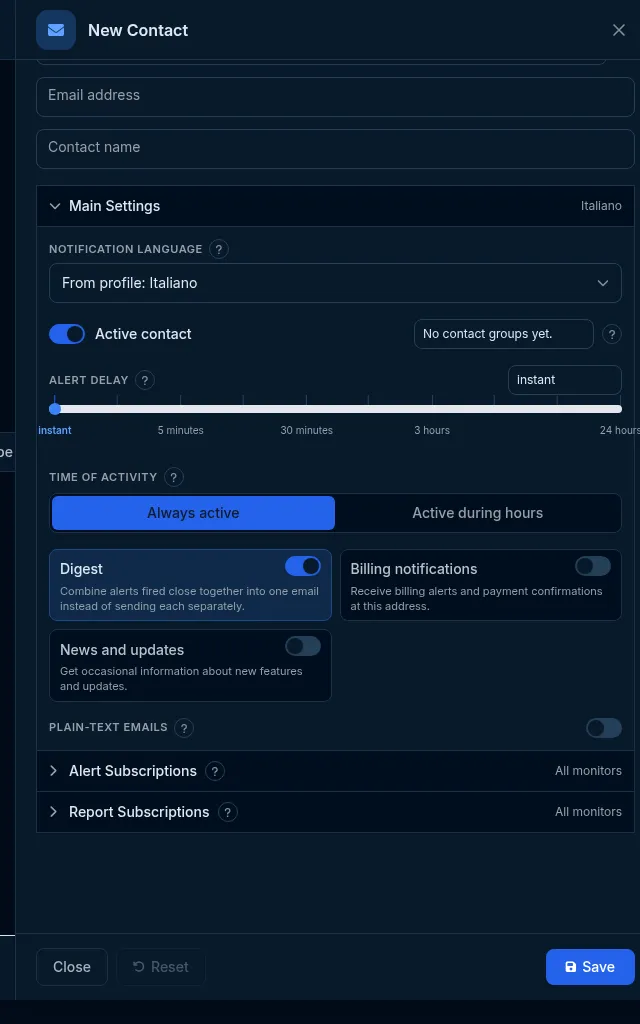
Under Main Settings you can also set a per-contact language, an alert delay, active hours, the Digest switch, and Plain-text emails.
What the message looks like
Section titled “What the message looks like”A real alert email is HTML by default: the monitor’s name and URL, what happened (the error, or the recovery and downtime duration), the time, and links back into HostTracker (edit the monitor, see the check details). Turning on Plain-text emails sends the same information as plain text instead - no images, no styled layout, just the facts a parser can read reliably. A scheduled report email instead carries a summary table (uptime percentage, incident count) for the period and monitors it covers.
Do it with the API or MCP
Section titled “Do it with the API or MCP”POST /contact{ "type": "email", "address": "[email protected]", "name": "Ops inbox" }MCP: create_contact(type="email", address="[email protected]", name="Ops inbox"). Confirm with
send_contact_confirmation / confirm_contact, then verify delivery with test_contact.
What happens next
Section titled “What happens next”HostTracker sends a confirmation code to the address immediately. The contact receives nothing real until it’s confirmed - see the confirmation flow for the exact code lifetime and attempt limit.
Limits and gotchas
Section titled “Limits and gotchas”422 validation_failed(reasonundeliverable_domain) - the address’s domain has no working mail server (checked at create/update time). This check fails open on DNS trouble, so it should never block a real domain having a bad day, but it will refuse an obvious typo up front.- Check spam/junk folders for both the confirmation email and, if alerts seem to be missing later, the alerts themselves - add HostTracker’s sending address to your allowlist if your provider filters aggressively.
- Send a test alert once confirmed to be sure it renders and arrives as expected.