

Set up Telegram alerts
Telegram contacts aren’t created by typing an address - you register your Telegram account with the HostTracker bot, and that chat becomes the contact.
Settings reference
Section titled “Settings reference”| Setting (UI label) | API field (v2) | Type / allowed values | Default | Plan limits | What it does for you |
|---|---|---|---|---|---|
| Contact Type | type |
"telegram" (read-only - see below) |
- | - | |
| Address | - | None - the bot registration IS the identity | - | - | There’s no address field to set; RequiresAddress: false on this type |
Language, alert delay and active hours all apply normally once the contact exists (the shared model on
what a contact is); groupedAlerts has no toggle in the app for this type, but the field
exists on the API if you want it.
Add a Telegram contact
Section titled “Add a Telegram contact”- Open Alerts & Contacts and click + Add contact.
- Choose Telegram in the Contact Type list. The editor shows the Connect via Telegram flow instead of an address field.
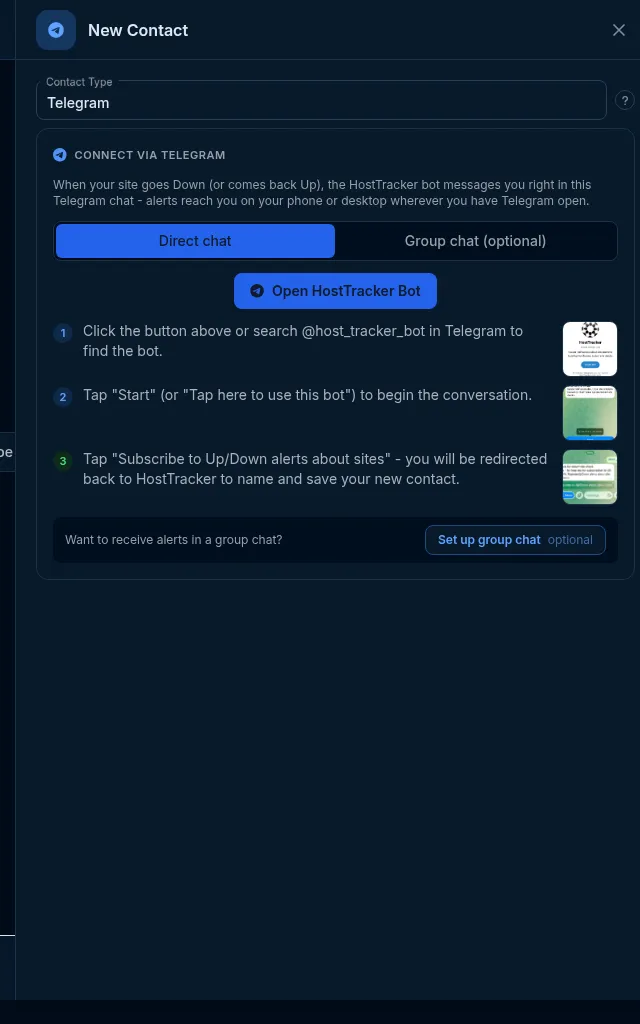
- Leave the tab on Direct chat (or pick Group chat to alert a whole team - see below), then click
Open HostTracker Bot. That opens a chat with
@host_tracker_botin Telegram. - Tap Start (or “Tap here to use this bot”) to begin the conversation.
- Tap Subscribe to Up/Down alerts about sites. Telegram redirects you back to HostTracker, where you name and save the new contact - it appears as a confirmed contact automatically, with no separate confirmation step.
What the message looks like
Section titled “What the message looks like”A chat message from the bot: the monitor’s name, what happened, and a link back into HostTracker - shorter than an email, similar in content to an SMS.
Do it with the API or MCP
Section titled “Do it with the API or MCP”There’s no create call for this type - telegram is creatable: false in the contact-type catalogue
(RequiresRegistration: true), and the bot’s own registration handshake is what mints the row. Once it exists,
manage it normally:
PATCH /contact/{id}{ "alertDelay": 15 }MCP: update_contact, delete_contact, list_contacts, test_contact all work on an existing Telegram
contact; create_contact explicitly does not create this type.
What happens next
Section titled “What happens next”The chat is confirmed the instant the registration completes - linking the bot IS the confirmation, there’s no code to enter.
Limits and gotchas
Section titled “Limits and gotchas”- The contact is tied to the Telegram chat, not a phone number or username. To alert a whole team, switch the editor to the Group chat (optional) tab and use Set up group chat - the bot joins your group and that group becomes the contact.
- The same bot also answers a
/checkcommand for running an instant check on demand from inside Telegram. - Creating one through
POST /contactdirectly is refused with422 contact_type_not_creatable- this isn’t a bug, the registration handshake is the only door. - Telegram receives every alert kind HostTracker sends, including certificate-expiry, domain-expiry, DNSBL
blacklist and Web Risk notices - the restriction that blocks those from a plain generic webhook contact
(see Webhook) only applies to
httpcontacts, not bot channels.