

Check rendered page content (Content check monitor)
The Content check monitor (API type cntCheck, shown in the app as Web content check) opens your page in
a real Chromium browser, waits until the network is idle, and searches the rendered text for your keywords.
It sees text that JavaScript adds after load, which a Website monitor’s keyword check
cannot. Use it for single-page apps, client-rendered prices or stock levels, and any page whose important text
is not in the raw HTML.
At a glance
Section titled “At a glance”| API type token | cntCheck |
| Runs from | HostTracker’s browser checkpoint fleet - you pick the locations |
| Intervals in the app | 10, 15, 30, 45 minutes, 1, 2, 4, 6, 12, 24 hours, or a cron schedule |
| Default interval | 10 minutes in the app; 3 minutes if omitted in the API |
| Plan gates | the Content check type (contentCheck) and keyword monitoring are package features |
How Down is decided
Section titled “How Down is decided”- The browser must open the page and reach network idle within the Timeout. A navigation error or timeout fails the check.
- After a short settle pause, the visible text (or all text, if Check only visible content is off) is collected and matched against the keywords.
- The Successful check condition decides the verdict (see the table below).
The page’s HTTP status is recorded but does not decide the verdict - an error page that happens to contain your keyword passes. A failed check is re-checked from other locations before the monitor turns Down.
Settings reference
Section titled “Settings reference”The name, interval, cron, tags, Full Log, Open Stats, subscriptions and locations work as described in Common monitor fields.
| Setting (app label) | API field | Type / allowed values | Default | Plan limits | What it does for you |
|---|---|---|---|---|---|
| Url/Domain/IP | url |
URL or domain | required | - | The page to open. |
| Timeout (Main Settings) | settings.timeout |
milliseconds, 50-120000 (app 1-120 s) | 40000 | - | How long the page may take to load before the check fails. |
| Content check keywords | settings.keyword |
1-255 characters; several keywords separated by ; in the API (the app takes them as separate entries) |
required | keyword monitoring feature | The text to find in the rendered page. |
| Successful check condition | settings.keywordPresent + settings.keywordAny |
booleans | true + false |
- | Present or absent, and how several keywords combine - see below. |
| Case sensitive match | settings.caseSensitive |
boolean | false |
- | Match exact letter case. |
| Check only visible content | settings.onlyVisible |
boolean | true |
- | Ignore text hidden by CSS (display:none, visibility:hidden, zero size). |
| If selected locations are unavailable | locations.fallback |
starve, geo, world |
starve |
- | What happens when your chosen checkpoints are busy. |
What the two condition fields actually do:
keywordPresent |
keywordAny |
The check fails when |
|---|---|---|
true |
false (API default) |
none of the keywords is found - one match is enough |
true |
true |
any keyword is missing - all must be found |
false |
true |
any keyword is found - all must be absent |
false |
false |
every keyword is found at the same time |
The editor also shows a Recheck strategy selector, but this type has no recheck setting in the API; a content check always uses the default confirmation (majority vote).
Set it up in the app
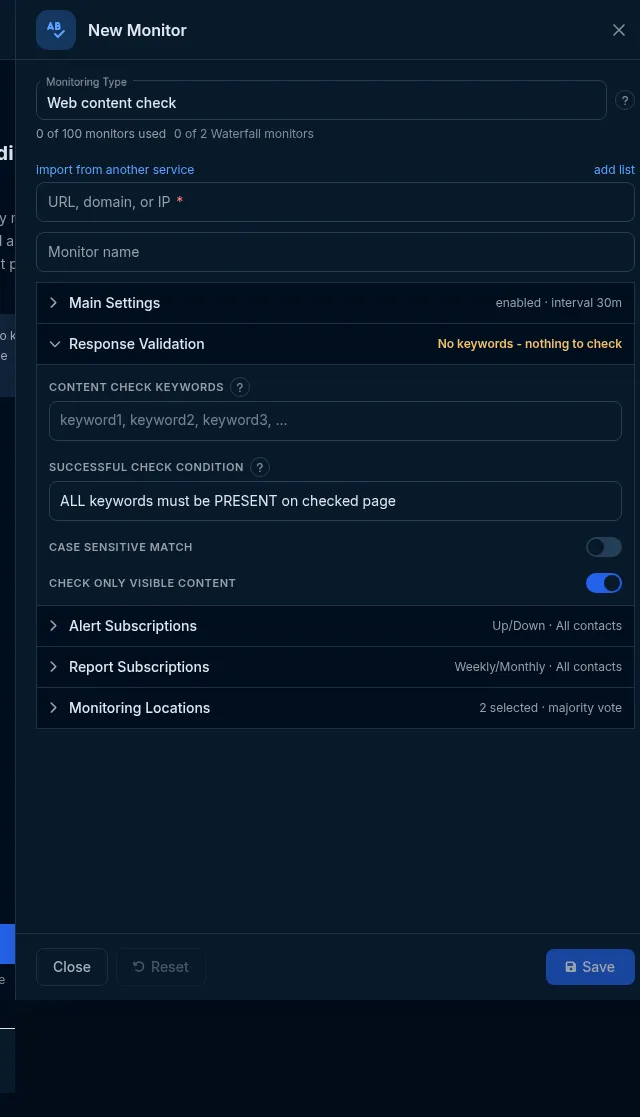
Section titled “Set it up in the app”- On the Sites dashboard, click Add Monitor and choose Web content check in Monitoring Type.
- Enter the page in Url/Domain/IP and a name.
- In Main Settings, choose the interval and Timeout.
- In Response Validation, enter the Content check keywords, choose the Successful check condition, and set Case sensitive match and Check only visible content.
- Pick browser locations in Monitoring Locations and click Save.
Do it with the API or MCP
Section titled “Do it with the API or MCP”curl -X POST https://api2.host-tracker.com/monitor \ -H "Authorization: Bearer $HT_TOKEN" -H "Content-Type: application/json" \ -d '{ "type": "cntCheck", "url": "https://app.example.com/pricing", "interval": 600, "locations": { "pools": ["allworld"] }, "settings": { "keyword": "Add to cart", "keywordPresent": true } }'Update - fail if an error message appears instead:
curl -X PATCH https://api2.host-tracker.com/monitor/<monitor-id> \ -H "Authorization: Bearer $HT_TOKEN" -H "Content-Type: application/json" \ -d '{ "settings": { "keyword": "Something went wrong;Error 500", "keywordPresent": false, "keywordAny": true } }'MCP (interval is passed to the API as-is, in seconds):
create_monitor(type="cntCheck", url="https://app.example.com/pricing", interval=600, pools="allworld", settingsJson="{\"keyword\":\"Add to cart\"}")Recipes
Section titled “Recipes”- A client-rendered element shows up -
keyword: "In stock", defaults for the rest. - Every one of several texts must be there -
keyword: "Login;Pricing",keywordPresent: true,keywordAny: true. - No error banner -
keyword: "Error;Something went wrong",keywordPresent: false,keywordAny: true. - Hidden text counts too -
onlyVisible: false. - Plain HTML page - use the Website monitor’s keywords instead; it is lighter and can run every minute.
What happens next
Section titled “What happens next”Each check records the load time, the HTTP status and how many elements matched each keyword. A failed match is re-checked from other locations, then opens an incident and alerts the subscribed contacts.
Limits and gotchas
Section titled “Limits and gotchas”403 package_limit- your package does not include Content check or keyword monitoring.422 invalid_settings-keywordis missing or longer than 255 characters, or the timeout is out of range.locations.poolsis required on create.- Commas do not separate keywords in the API -
"a, b"is one keyword. Use;.