

Subscribe monitors to a contact
You can manage subscriptions from either side: from a monitor’s editor’s Alert/Report Subscriptions groups, or from the contact itself when you want to see and change everything one contact is subscribed to in one place. This page covers the contact side; the wire model both sides share is on Subscriptions: alert vs report.
Open the Alert Subscriptions tab
Section titled “Open the Alert Subscriptions tab”On the Alerts & Contacts list, click Subscriptions on a contact’s row (or open the contact and switch to its Alert Subscriptions section). The header shows how many monitors it’s Notified on, and a Send test button.
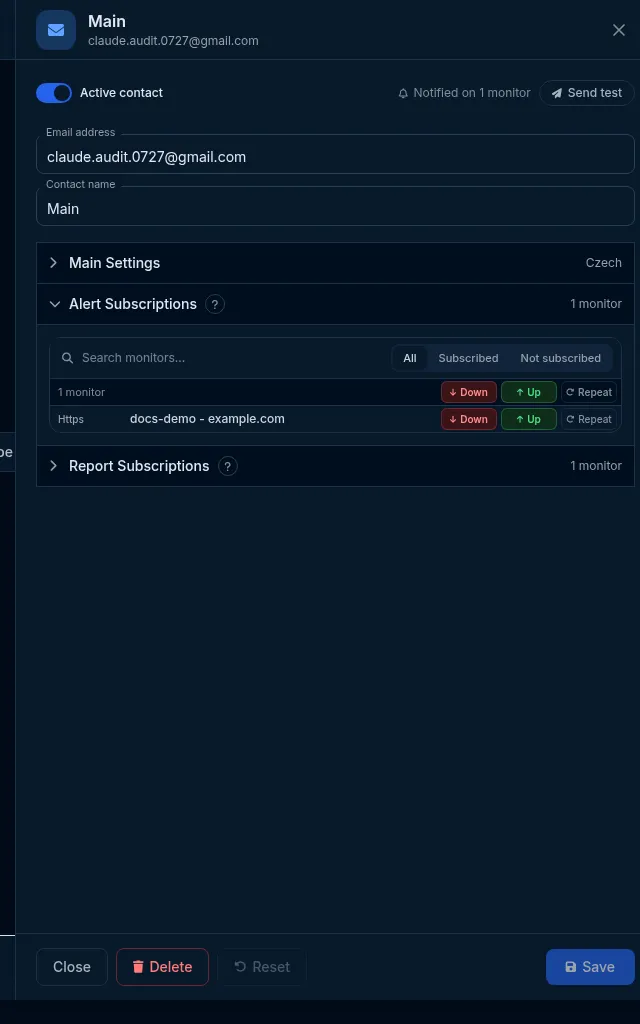
The per-monitor grid
Section titled “The per-monitor grid”Every monitor appears as a row with three event toggles:
- Down - alert this contact when the monitor is confirmed down.
- Up - alert when it recovers.
- Repeat - send repeat still-down reminders while the outage continues.
Turn events on or off per monitor without leaving the page. A search box filters the list by name, and the All / Subscribed / Not subscribed tabs narrow it - handy when you have many monitors and only want to see the ones this contact already hears about.
What a new monitor is subscribed to
Section titled “What a new monitor is subscribed to”In the app, the create form has a Subscribe all switch above the contact grid, and it starts on. Saving with it on subscribes every current contact to the standard events: Up and Down alerts, and Weekly and Monthly reports for email contacts. Repeatedly-down alerts and Daily reports are never included. Turn the switch off, or untick single cells in the grid, before you save if some contacts should not hear about this monitor. To change the starting position for every new monitor, use the Defaults tab in your profile (Subscribe all contacts to Up/Down alerts and Subscribe contacts to Weekly/Monthly reports). The switch exists only on the create form; after that, manage the monitor’s grid or each contact’s Subscriptions tab as described here.
Through the API or MCP, nothing is subscribed automatically. POST /monitor subscribes only the contacts you
list in the request body, and the MCP create_monitor tool subscribes none, so follow it with subscribe_contact
(or POST /alert/bulk) for each contact that should get alerts.
Report Subscriptions
Section titled “Report Subscriptions”The same tab has a Report Subscriptions section that works the same way for scheduled uptime reports: Daily, Weekly or Monthly pills per monitor (picking Monthly also covers Quarterly and Yearly under the hood - see Subscriptions), gated to email contacts only.
Do it with the API or MCP
Section titled “Do it with the API or MCP”The contact-side reads are the nested contact routes: GET /contact/{id}/alert (every monitor this contact
hears about, with its alert-type set) and GET /contact/{id}/report for reports. Writing one pair uses the
same PUT/DELETE doors covered on the subscriptions page -
from the contact side the path is PUT /contact/{contactId}/alert/{monitorId} (or report/{monitorId}), and
DELETE /contact/{id}/alert removes every alert subscription that contact has, across all monitors, in one
call.
To subscribe one contact to many monitors at once, use the diff door with a fixed contactIds and either an
explicit monitorIds list in the entry or "allMonitors": true at the top level of the body (not inside the
entry - an entry takes only monitorIds, contactIds and alertTypes):
POST /alert/bulk{ "allMonitors": true, "create": [ { "contactIds": ["<contactId>"], "alertTypes": ["down", "up"] } ] }MCP: subscribe_contact(monitorId, contactId, alertTypes, frequencies) for one pair at a time, or
list_subscriptions(kind, contactId=...) to see everything a contact is currently subscribed to before making
bulk changes with api_request(method="POST", path="/alert/bulk", bodyJson="...", confirmed=true) - the MCP server
refuses any /bulk write that lacks confirmed=true (see
The api_request confirmation rule).
What happens next
Section titled “What happens next”Toggling an event in the grid writes (or removes) that subscription immediately - there’s no separate save step for this tab. The change applies to the very next check on that monitor.
Limits and gotchas
Section titled “Limits and gotchas”- Subscribing here is exactly the same write as subscribing from the monitor’s own editor - whichever side you use last is what’s in effect; there’s no “the monitor side wins” precedence.
- An unconfirmed contact shows normally in this grid and accepts subscriptions, but receives nothing until it’s confirmed - see what a contact is.
- A report toggle on a non-email contact is refused by the API (
422 unsupported_report_channel); the app’s own grid simply doesn’t render the Report Subscriptions section for a contact type that can’t receive them.